

在网页里长按一张图片,弹出"保存图片"——这个操作听起来简单,背后却涉及权限、图片下载、媒体库写入好几个环节。HarmonyOS 提供了
SaveButton 这个安全控件,加上
photoAccessHelper,可以在不申请额外权限的情况下把图片保存到相册。
为什么要用 SaveButton?
HarmonyOS 的相册写入需要 ohos.permission.WRITE_IMAGEVIDEO 权限,但这是一个受限权限,普通应用申请很麻烦。
SaveButton 是一个系统安全控件,用户点击它时,系统临时授予当次操作的相册写入权限,不需要应用提前申请权限。只要用户自愿点击"保存图片"按钮,就有权限保存——这个设计既方便开发者,也保护用户。
流程图
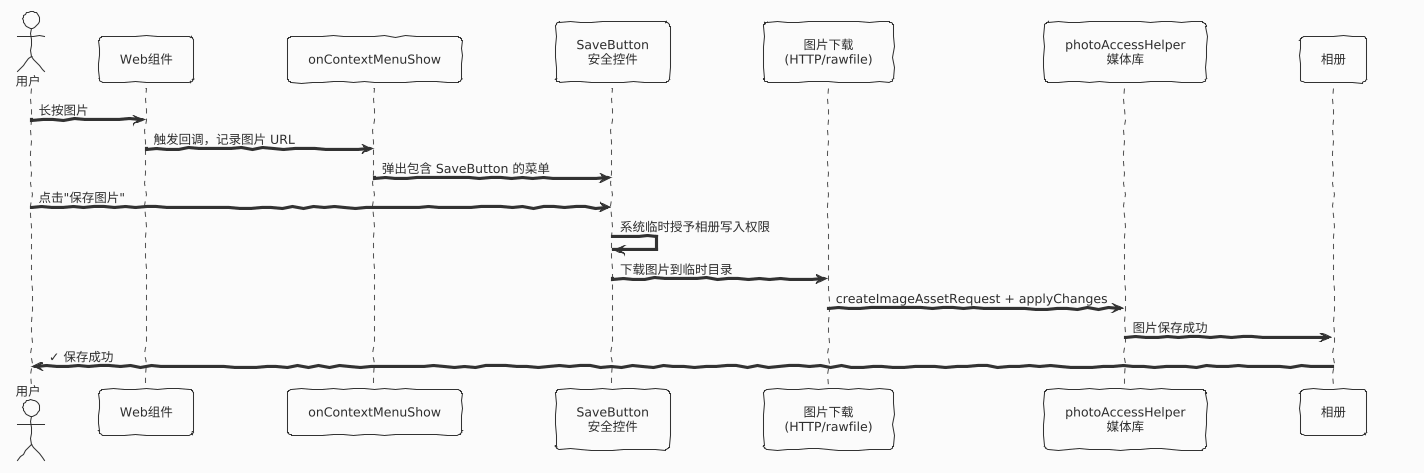
完整实现
import { webview } from '@kit.ArkWeb';
import { common } from '@kit.AbilityKit';
import { fileIo } from '@kit.CoreFileKit';
import { systemDateTime } from '@kit.BasicServicesKit';
import { http } from '@kit.NetworkKit';
import { photoAccessHelper } from '@kit.MediaLibraryKit';

@Entry
@Component
struct WebSaveImageDemo {
  // SaveButton 的外观配置
  saveButtonOptions: SaveButtonOptions = {
    icon: SaveIconStyle.FULL_FILLED,       // 图标样式:实心填充
    text: SaveDescription.SAVE_IMAGE,      // 按钮文字:保存图片
    buttonType: ButtonType.Capsule         // 胶囊形状
  };

  controller: webview.WebviewController = new webview.WebviewController();
  @State showMenu: boolean = false;
  @State imgUrl: string = '';  // 当前长按图片的 URL

  context = this.getUIContext().getHostContext() as common.UIAbilityContext;

  // ========== 工具方法:从 rawfile 复制图片 ==========
  copyLocalPicToDir(rawfilePath: string, newFileName: string): string {
    try {
      const srcFileDes = this.context.resourceManager.getRawFdSync(rawfilePath);
      const dstPath = this.context.filesDir + '/' + newFileName;
      const dest: fileIo.File = fileIo.openSync(
        dstPath,
        fileIo.OpenMode.CREATE | fileIo.OpenMode.READ_WRITE
      );

      let bufSize = 4096;
      const buf = new ArrayBuffer(bufSize);
      let offset = 0;
      let readLen = 0;
      let len = 0;

      // 分块读取并写入
      while ((len = fileIo.readSync(srcFileDes.fd, buf, {
        offset: srcFileDes.offset + offset,
        length: bufSize
      })) !== 0) {
        readLen += len;
        fileIo.writeSync(dest.fd, buf, { offset: offset, length: len });
        offset += len;
        if ((srcFileDes.length - readLen) < bufSize) {
          bufSize = srcFileDes.length - readLen;
        }
      }

      fileIo.close(dest.fd);
      return dest.path;
    } catch (error) {
      console.error('复制本地图片失败:', error);
      return '';
    }
  }

  // ========== 工具方法:从网络 URL 下载图片 ==========
  async copyUrlPicToDir(picUrl: string, newFileName: string): Promise<string> {
    let uri = '';
    const httpRequest = http.createHttp();
    try {
      const data: http.HttpResponse = await (
        httpRequest.request(picUrl) as Promise<http.HttpResponse>
      );
      if (data?.responseCode === http.ResponseCode.OK) {
        const dstPath = this.context.filesDir + '/' + newFileName;
        const dest: fileIo.File = fileIo.openSync(
          dstPath,
          fileIo.OpenMode.CREATE | fileIo.OpenMode.READ_WRITE
        );
        fileIo.writeSync(dest.fd, data.result as ArrayBuffer);
        fileIo.close(dest.fd);
        uri = dstPath;
      }
    } catch (error) {
      console.error('下载在线图片失败:', error);
    } finally {
      httpRequest.destroy(); // 一定要销毁,防止内存泄漏
    }
    return uri;
  }

  // ========== 长按弹出的菜单 ==========
  @Builder
  MenuBuilder() {
    Column() {
      Row() {
        // SaveButton:用户点击后系统授予临时相册写权限
        SaveButton(this.saveButtonOptions)
          .onClick(async (event, result: SaveButtonOnClickResult) => {
            if (result === SaveButtonOnClickResult.SUCCESS) {
              try {
                let filePath = '';

                // 判断图片来源:本地 rawfile 还是网络 URL
                if (this.imgUrl.includes('rawfile')) {
                  // 提取 rawfile 文件名
                  const rawFileName = this.imgUrl.substring(
                    this.imgUrl.lastIndexOf('/') + 1
                  );
                  filePath = this.copyLocalPicToDir(rawFileName, 'saveImage.png');
                } else if (
                  this.imgUrl.includes('http') ||
                  this.imgUrl.includes('https')
                ) {
                  // 网络图片:下载后保存
                  const timestamp = systemDateTime.getTime();
                  filePath = await this.copyUrlPicToDir(
                    this.imgUrl,
                    `onlinePic_${timestamp}.png`
                  );
                }

                if (filePath) {
                  // 创建媒体库写入请求
                  const phAccessHelper = photoAccessHelper.getPhotoAccessHelper(
                    this.context
                  );
                  const changeRequest =
                    photoAccessHelper.MediaAssetChangeRequest.createImageAssetRequest(
                      this.context,
                      filePath
                    );
                  await phAccessHelper.applyChanges(changeRequest);
                  console.info('图片保存成功:', filePath);
                }
              } catch (err) {
                console.error(`保存失败:${err.code}, ${err.message}`);
              }
            } else {
              console.error('SaveButton 点击结果不是 SUCCESS');
            }
            this.showMenu = false;
          })
      }
      .margin({ top: 20, bottom: 20 })
      .justifyContent(FlexAlign.Center)
    }
    .width(200)
    .backgroundColor(Color.White)
    .borderRadius(10)
    .shadow({ radius: 10, color: '#20000000' })
  }

  build() {
    Column() {
      Web({ src: $rawfile('index.html'), controller: this.controller })
        .onContextMenuShow((event) => {
          if (event) {
            // 使用 getLastHitTest 获取长按位置的图片信息
            const hitValue = this.controller.getLastHitTest();
            this.imgUrl = hitValue.extra; // extra 里是图片的 src URL
          }
          this.showMenu = true;
          return true; // 阻止系统菜单
        })
        .bindContextMenu(this.MenuBuilder, ResponseType.LongPress)
        .fileAccess(true)
        .javaScriptAccess(true)
        .domStorageAccess(true)
        .width('100%')
        .height('100%')
    }
  }
}
getLastHitTest 是什么
controller.getLastHitTest() 返回最近一次触摸测试的结果:
const hitValue = this.controller.getLastHitTest();
// hitValue.type:命中元素的类型(图片/链接/文字等)
// hitValue.extra:附加信息
//   - 如果是图片:extra 是图片的 src URL
//   - 如果是链接:extra 是链接的 href
注意:要在 onContextMenuShow 回调里调,时机太早或太晚都可能拿到错误的结果。
SaveButton 外观配置
SaveButtonOptions 有三个属性:
| 属性 | 可选值 | 说明 |
|---|---|---|
icon | SaveIconStyle.FULL_FILLED / LINE | 图标样式 |
text | SaveDescription.SAVE_IMAGE / SAVE_FILE / SAVE | 按钮文字 |
buttonType | ButtonType.Capsule / Normal / Circle | 按钮形状 |
图片保存到相册的核心步骤
// 步骤1:获取 photoAccessHelper 实例
const phAccessHelper = photoAccessHelper.getPhotoAccessHelper(context);

// 步骤2:创建图片资源写入请求(传入本地文件路径)
const changeRequest =
  photoAccessHelper.MediaAssetChangeRequest.createImageAssetRequest(
    context,
    localFilePath  // 必须是 App 沙盒范围内的路径
  );

// 步骤3:应用变更(实际写入)
await phAccessHelper.applyChanges(changeRequest);
注意:localFilePath 必须是 App 沙盒内的路径(filesDir、cacheDir 等),不能是 rawfile 的 fd 路径。所以网络图片和 rawfile 图片都需要先复制到 filesDir 里。
常见问题
Q:SaveButton 点击后 result 不是 SUCCESS
检查 saveButtonOptions 配置是否正确,text 和 icon 至少要设置一个。另外 SaveButton 在布局上要完全可见,被其他组件遮挡会导致点击无效。
Q:图片保存成功但相册里看不到
检查 createImageAssetRequest 传入的路径是否正确。rawfile 的 fd 路径(形如 /dev/rawfile/xxx)不能直接用,必须先复制到 filesDir 下的真实文件路径。
写在最后
SaveButton 这个安全控件是 HarmonyOS 安全设计的体现——用户主动点击才授权,而不是应用在后台悄悄写入相册。配合上完整的图片下载逻辑,保存图片到相册的体验做起来还是很流畅的。
转载自CSDN-专业IT技术社区
原文链接:https://blog.csdn.net/qq_33681891/article/details/161145851