

项目简介
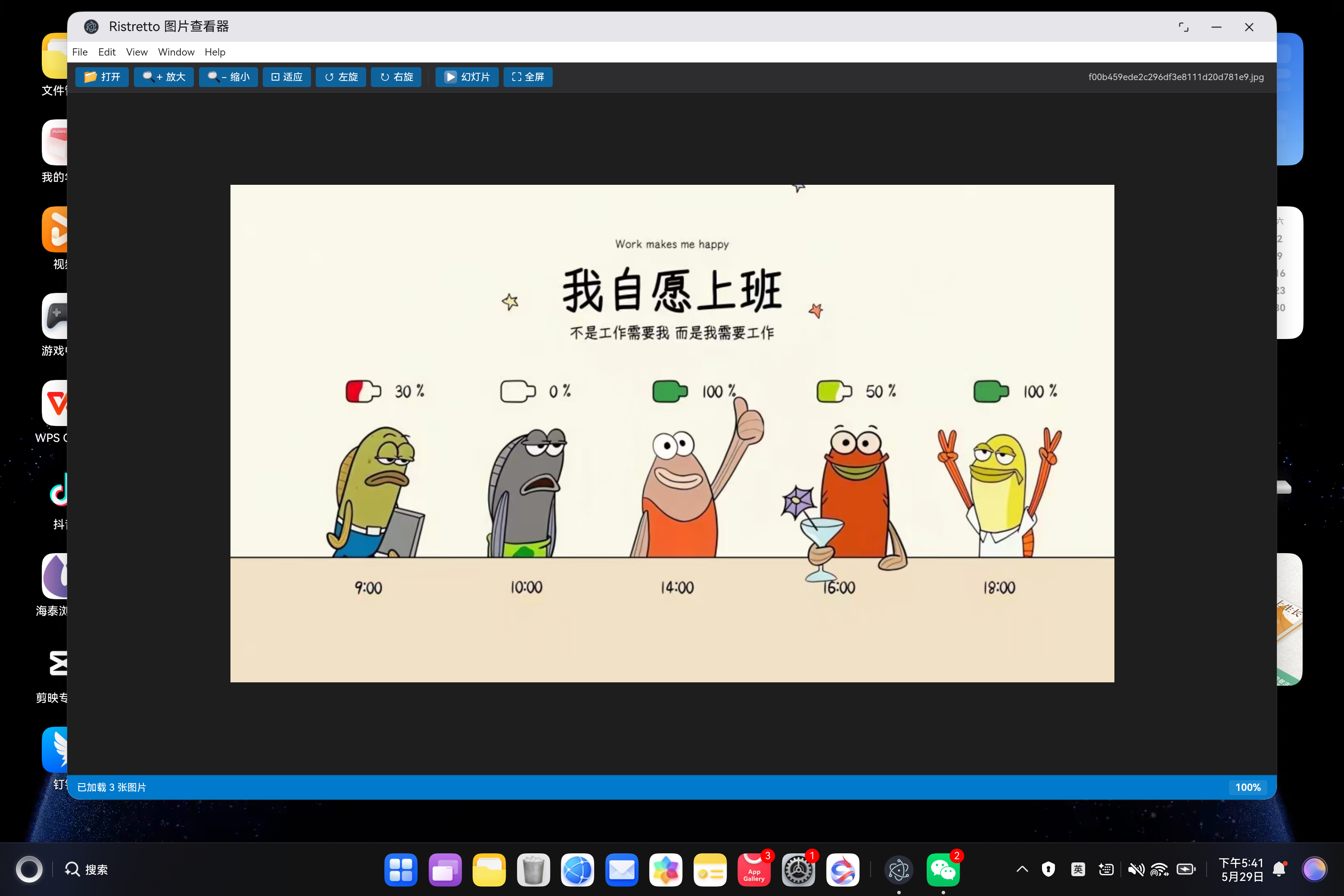
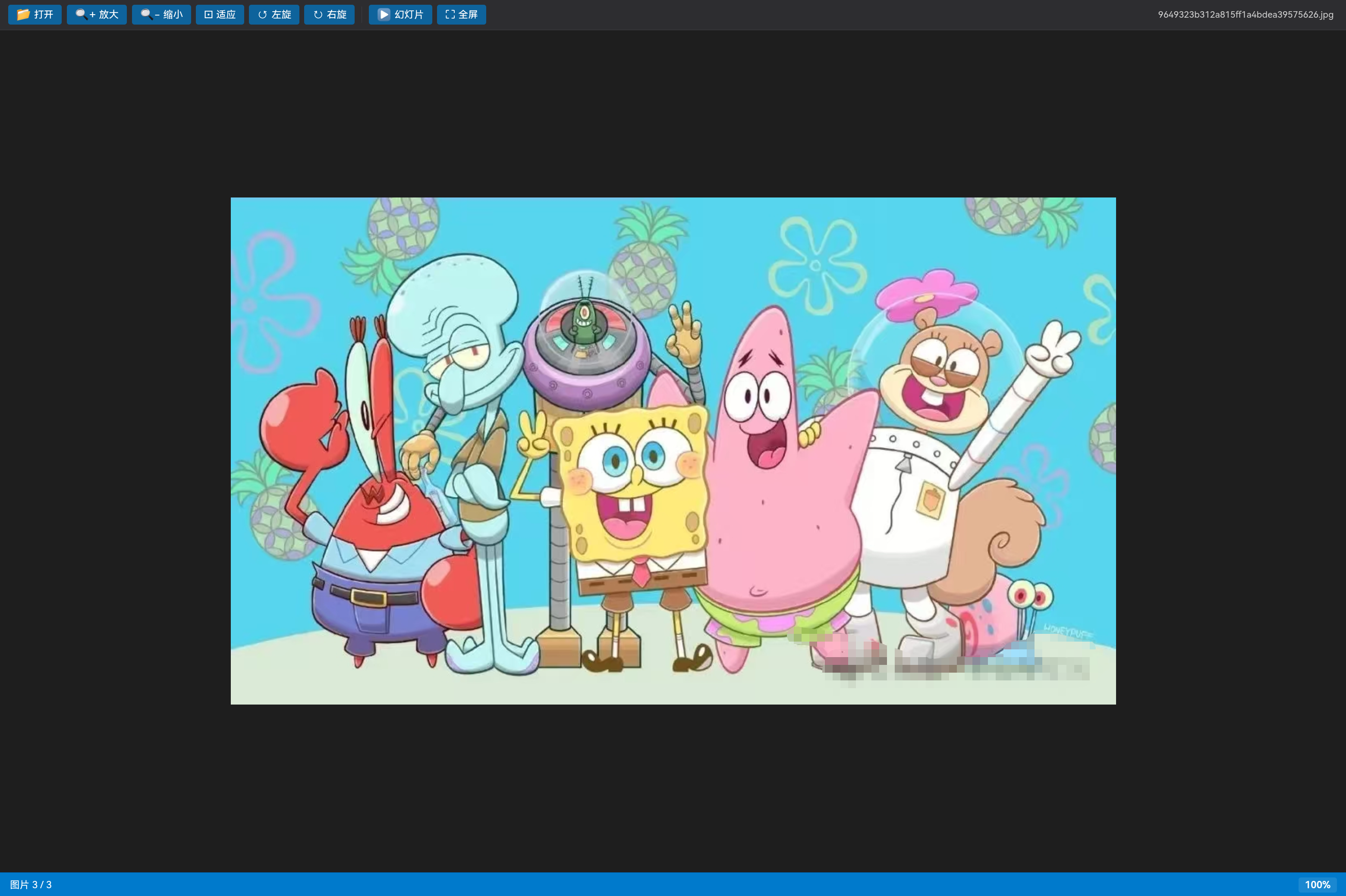
Ristretto 是 Xfce 桌面环境的一款轻量级图片查看器,支持图片浏览、幻灯片播放、旋转等功能。本项目将其从 Linux GTK 应用迁移到鸿蒙平台,采用 Electron 核心功能 + 鸿蒙壳工程 的架构模式。
欢迎加入开源鸿蒙PC社区:https://harmonypc.csdn.net/
欢迎在PC社区平台申请新建项目:https://atomgit.com/OpenHarmonyPCDeveloper
AtomGit 仓库地址:https://atomgit.com/OpenHarmonyPCDeveloper/ohos_ristretto_electron
核心功能
- 🖼️ 图片浏览(JPG、PNG、GIF、WebP、SVG、BMP 等格式)
- 🔍 图片缩放(放大/缩小/适应窗口)
- 🔄 图片旋转(左旋/右旋 90°)
- ▶️ 幻灯片自动播放
- ⛶ 全屏查看模式
- 📂 文件选择器(支持多选)
一、技术架构
1.1 原始架构(Linux GTK)
Ristretto (C/GTK)
├── 图片加载:GDK-Pixbuf
├── UI 渲染:GTK+ 3.0
├── 文件管理:GIO
└── 配置管理:GSettings
1.2 目标架构(鸿蒙 Electron)
鸿蒙壳工程 (ArkTS)
└── web_engine 模块 (XComponent WebView)
    └── Electron 应用 (HTML/CSS/JavaScript)
        ├── main.js - Electron 主进程
        ├── renderer.js - 渲染进程(核心逻辑)
        ├── index.html - UI 界面
        └── styles/ristretto.css - 样式文件
1.3 架构优势
- 跨平台:Electron 代码可在 Windows/macOS/Linux 复用
- 快速开发:Web 技术栈,开发效率高
- 易于维护:UI 和业务逻辑分离
- 鸿蒙兼容:通过 WebView 桥接,避开 Native 兼容问题
二、环境准备
2.1 开发环境要求
- 操作系统:Windows 10/11 或 macOS
- 开发工具:DevEco Studio(鸿蒙官方 IDE)
- HarmonyOS SDK:API 15
- Node.js:v24+(Electron 依赖)
2.2 项目结构
ohos_hap/
├── electron-apps/
│   └── ristretto/              # Electron 图片查看器源码
│       ├── main.js             # 主进程(窗口管理、IPC)
│       ├── renderer.js         # 渲染进程(UI 交互逻辑)
│       ├── index.html          # 界面结构
│       ├── package.json        # 项目配置
│       └── styles/
│           └── ristretto.css   # 样式文件
├── web_engine/                 # 鸿蒙 web_engine 模块
│   └── src/main/resources/
│       └── resfile/resources/app/  # 部署目录
│           ├── main.js
│           ├── renderer.js
│           ├── index.html
│           └── styles/ristretto.css
└── build-profile.json5         # 鸿蒙构建配置
三、核心适配流程
3.1 第一步:创建 Electron 主进程
文件:electron-apps/ristretto/main.js
// Ristretto Image Viewer - Electron 主进程
const { app, BrowserWindow, ipcMain, dialog, screen } = require('electron');
const path = require('path');
const fs = require('fs');

let mainWindow = null;

function createWindow() {
  console.log('Ristretto: Creating window...');

  // 获取屏幕尺寸
  const primaryDisplay = screen.getPrimaryDisplay();
  const { width: screenWidth, height: screenHeight } = primaryDisplay.workAreaSize;

  // 窗口配置:占据大部分屏幕
  const windowWidth = Math.floor(screenWidth * 0.9);
  const windowHeight = Math.floor(screenHeight * 0.9);

  mainWindow = new BrowserWindow({
    width: windowWidth,
    height: windowHeight,
    x: Math.floor((screenWidth - windowWidth) / 2),
    y: Math.floor((screenHeight - windowHeight) / 2),
    frame: true,  // 保留窗口框架
    transparent: false,
    alwaysOnTop: false,
    hasShadow: true,
    resizable: true,
    focusable: true,
    webPreferences: {
      nodeIntegration: true,
      contextIsolation: false,
      backgroundThrottling: false
    }
  });

  console.log('Ristretto: Loading index.html from:', path.join(__dirname, 'index.html'));
  mainWindow.loadFile(path.join(__dirname, 'index.html'));

  console.log('Ristretto: Window created with size:', windowWidth, 'x', windowHeight);

  mainWindow.on('closed', () => {
    console.log('Ristretto: Window closed');
    mainWindow = null;
  });

  mainWindow.webContents.on('did-finish-load', () => {
    console.log('Ristretto: Page loaded successfully');
  });

  mainWindow.webContents.on('did-fail-load', (event, errorCode, errorDescription) => {
    console.error('Ristretto: Page failed to load:', errorCode, errorDescription);
  });

  setupIpcHandlers();
}
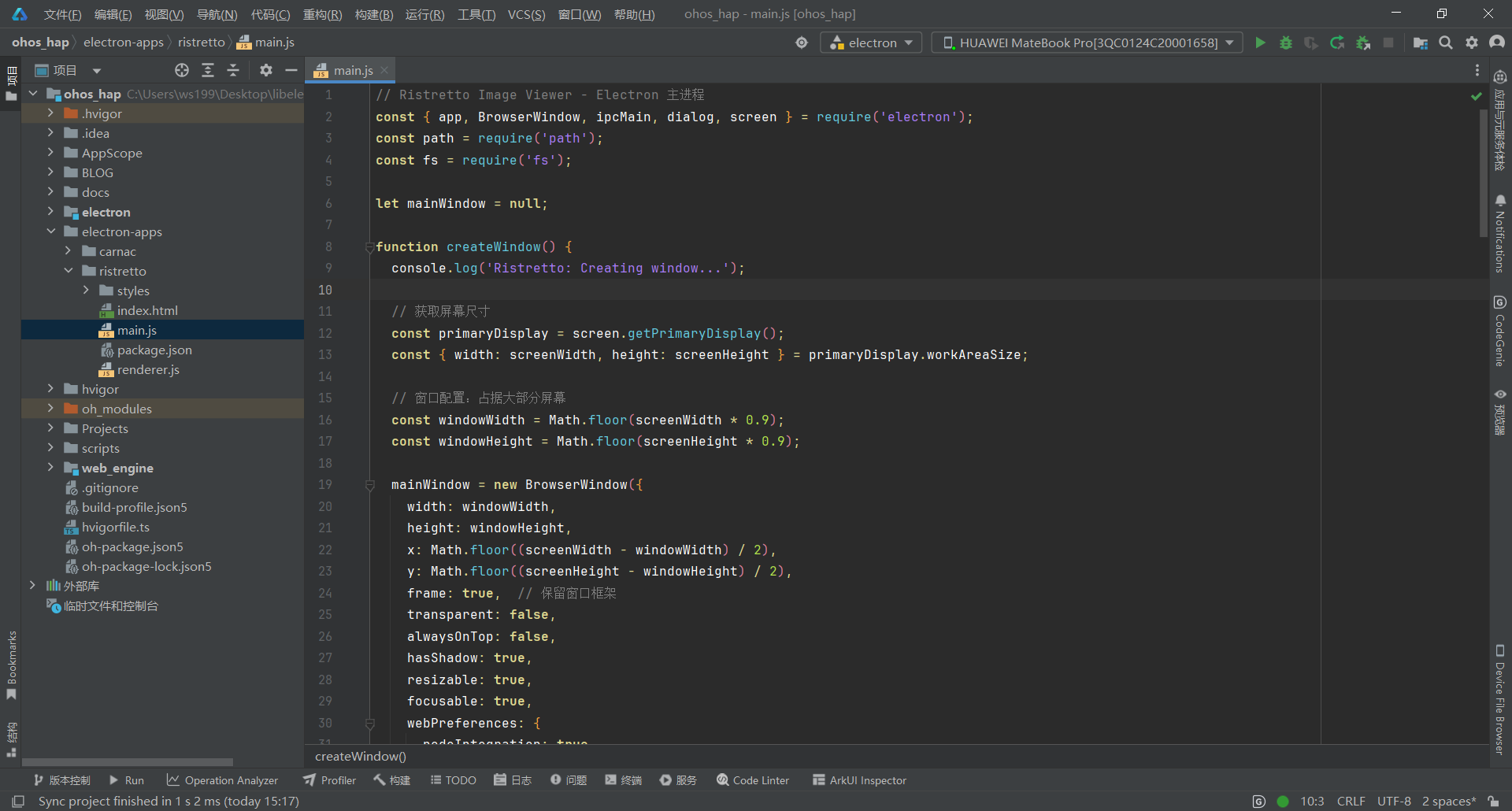
关键要点:
- 窗口尺寸为屏幕的 90%,居中显示
- 保留窗口框架(frame: true),适合图片查看器
- 启用 nodeIntegration 以使用 Node.js API
- 禁用 backgroundThrottling 保证后台运行性能
3.2 第二步:实现 IPC 通信处理
文件:electron-apps/ristretto/main.js
function setupIpcHandlers() {
  console.log('Ristretto: Setting up IPC handlers');

  // 打开文件对话框
  ipcMain.handle('open-file-dialog', async () => {
    const result = await dialog.showOpenDialog(mainWindow, {
      properties: ['openFile', 'multiSelections'],
      filters: [
        {
          name: 'Images',
          extensions: ['jpg', 'jpeg', 'png', 'gif', 'bmp', 'webp', 'svg', 'ico', 'tiff', 'tif']
        },
        { name: 'All Files', extensions: ['*'] }
      ]
    });

    if (!result.canceled && result.filePaths.length > 0) {
      return result.filePaths;
    }
    return null;
  });

  // 读取图片文件信息
  ipcMain.handle('get-image-info', async (event, filePath) => {
    try {
      const stats = fs.statSync(filePath);
      return {
        path: filePath,
        name: path.basename(filePath),
        size: stats.size,
        modified: stats.mtime,
        ext: path.extname(filePath)
      };
    } catch (error) {
      console.error('Ristretto: Failed to get image info:', error);
      return null;
    }
  });

  // 获取目录中的所有图片
  ipcMain.handle('get-directory-images', async (event, dirPath) => {
    try {
      const files = fs.readdirSync(dirPath);
      const imageExtensions = ['.jpg', '.jpeg', '.png', '.gif', '.bmp', '.webp', '.svg', '.ico', '.tiff', '.tif'];

      const imageFiles = files
        .filter(file => imageExtensions.includes(path.extname(file).toLowerCase()))
        .map(file => path.join(dirPath, file));

      return imageFiles;
    } catch (error) {
      console.error('Ristretto: Failed to read directory:', error);
      return [];
    }
  });

  // 保存文件(用于导出等)
  ipcMain.handle('save-file-dialog', async (event, defaultPath) => {
    const result = await dialog.showSaveDialog(mainWindow, {
      defaultPath: defaultPath,
      filters: [
        { name: 'PNG', extensions: ['png'] },
        { name: 'JPEG', extensions: ['jpg', 'jpeg'] },
        { name: 'WebP', extensions: ['webp'] }
      ]
    });

    return result.filePath;
  });
}
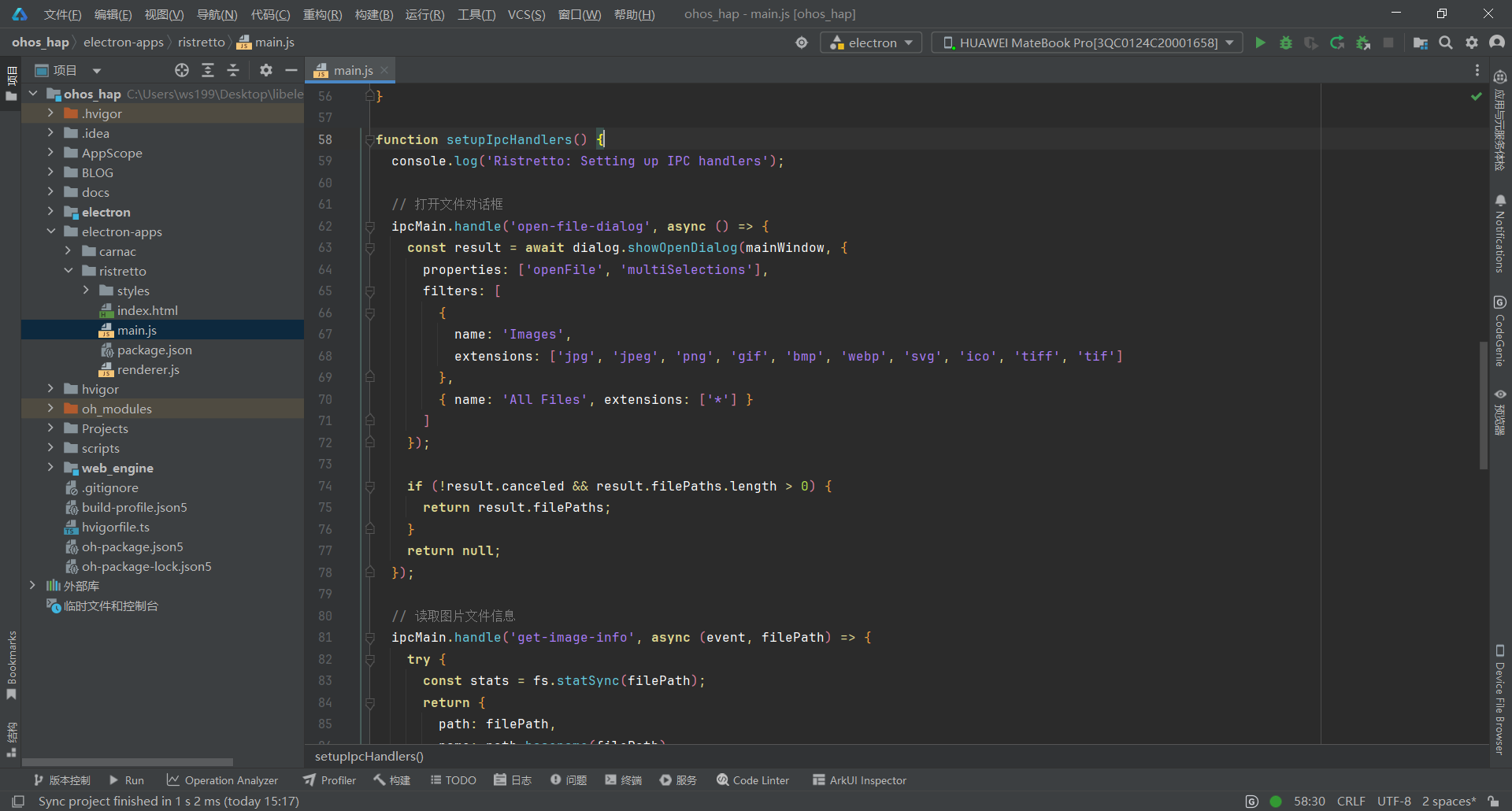
关键要点:
- 使用 ipcMain.handle 处理渲染进程请求
- 文件过滤器限制只选择图片格式
- 错误处理保证稳定性
- 支持批量图片加载
3.3 第三步:实现渲染进程逻辑
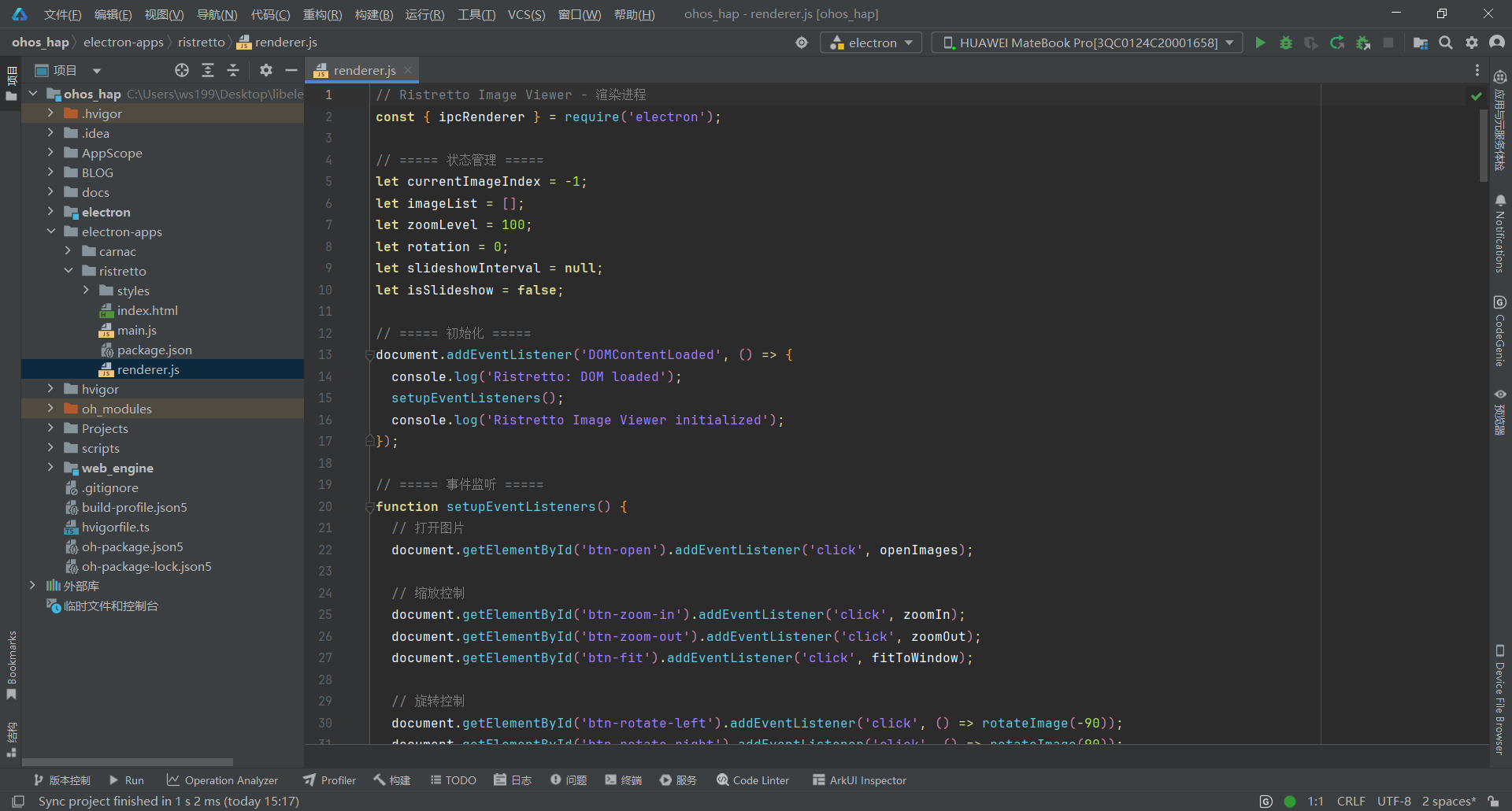
文件:electron-apps/ristretto/renderer.js
3.3.1 状态管理和初始化
// Ristretto Image Viewer - 渲染进程
const { ipcRenderer } = require('electron');

// ===== 状态管理 =====
let currentImageIndex = -1;
let imageList = [];
let zoomLevel = 100;
let rotation = 0;
let slideshowInterval = null;
let isSlideshow = false;

// ===== 初始化 =====
document.addEventListener('DOMContentLoaded', () => {
  console.log('Ristretto: DOM loaded');
  setupEventListeners();
  console.log('Ristretto Image Viewer initialized');
});
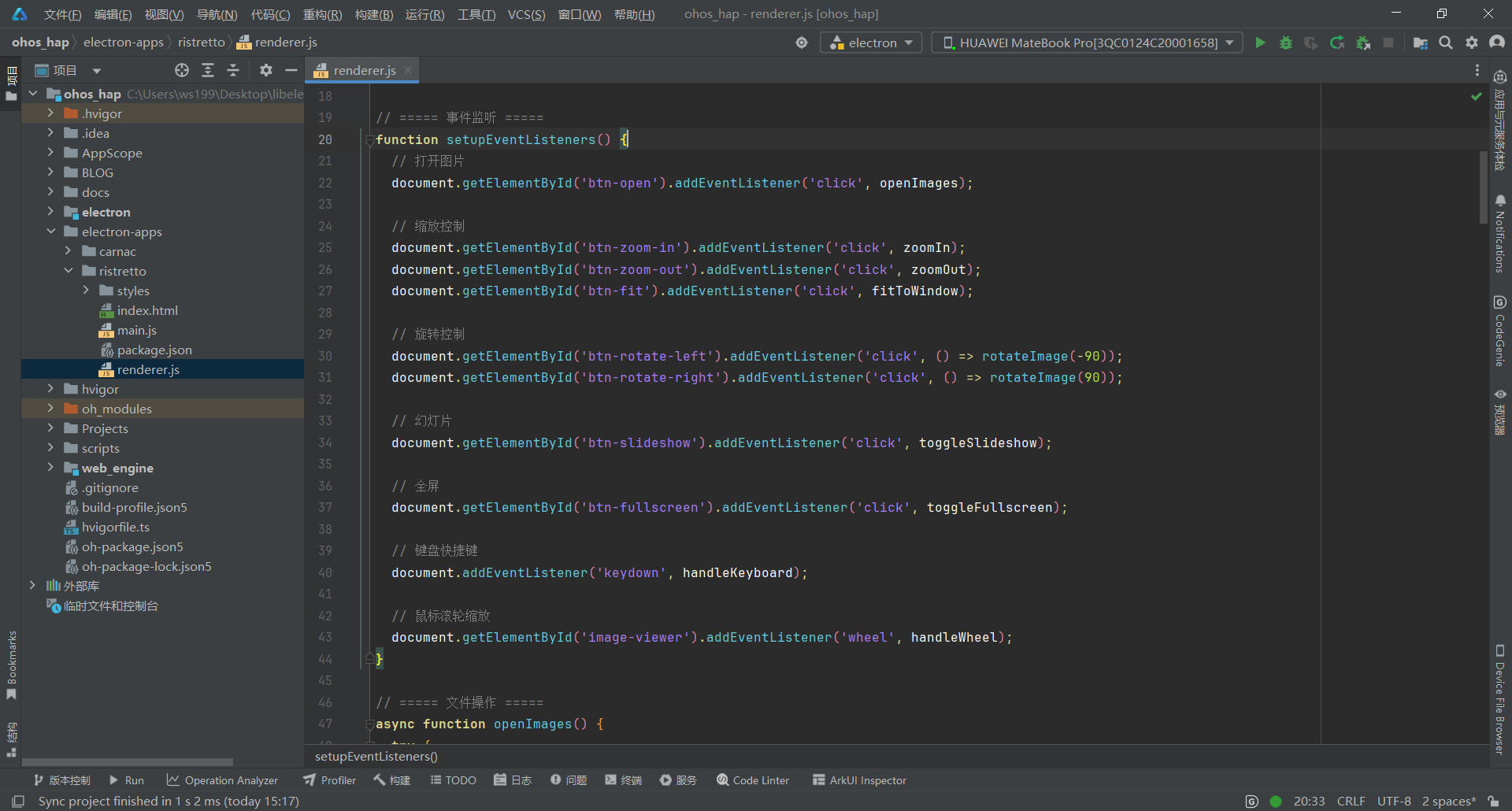
3.3.2 事件监听设置
// ===== 事件监听 =====
function setupEventListeners() {
  // 打开图片
  document.getElementById('btn-open').addEventListener('click', openImages);

  // 缩放控制
  document.getElementById('btn-zoom-in').addEventListener('click', zoomIn);
  document.getElementById('btn-zoom-out').addEventListener('click', zoomOut);
  document.getElementById('btn-fit').addEventListener('click', fitToWindow);

  // 旋转控制
  document.getElementById('btn-rotate-left').addEventListener('click', () => rotateImage(-90));
  document.getElementById('btn-rotate-right').addEventListener('click', () => rotateImage(90));

  // 幻灯片
  document.getElementById('btn-slideshow').addEventListener('click', toggleSlideshow);

  // 全屏
  document.getElementById('btn-fullscreen').addEventListener('click', toggleFullscreen);

  // 键盘快捷键
  document.addEventListener('keydown', handleKeyboard);

  // 鼠标滚轮缩放
  document.getElementById('image-viewer').addEventListener('wheel', handleWheel);
}
3.3.3 文件操作
// ===== 文件操作 =====
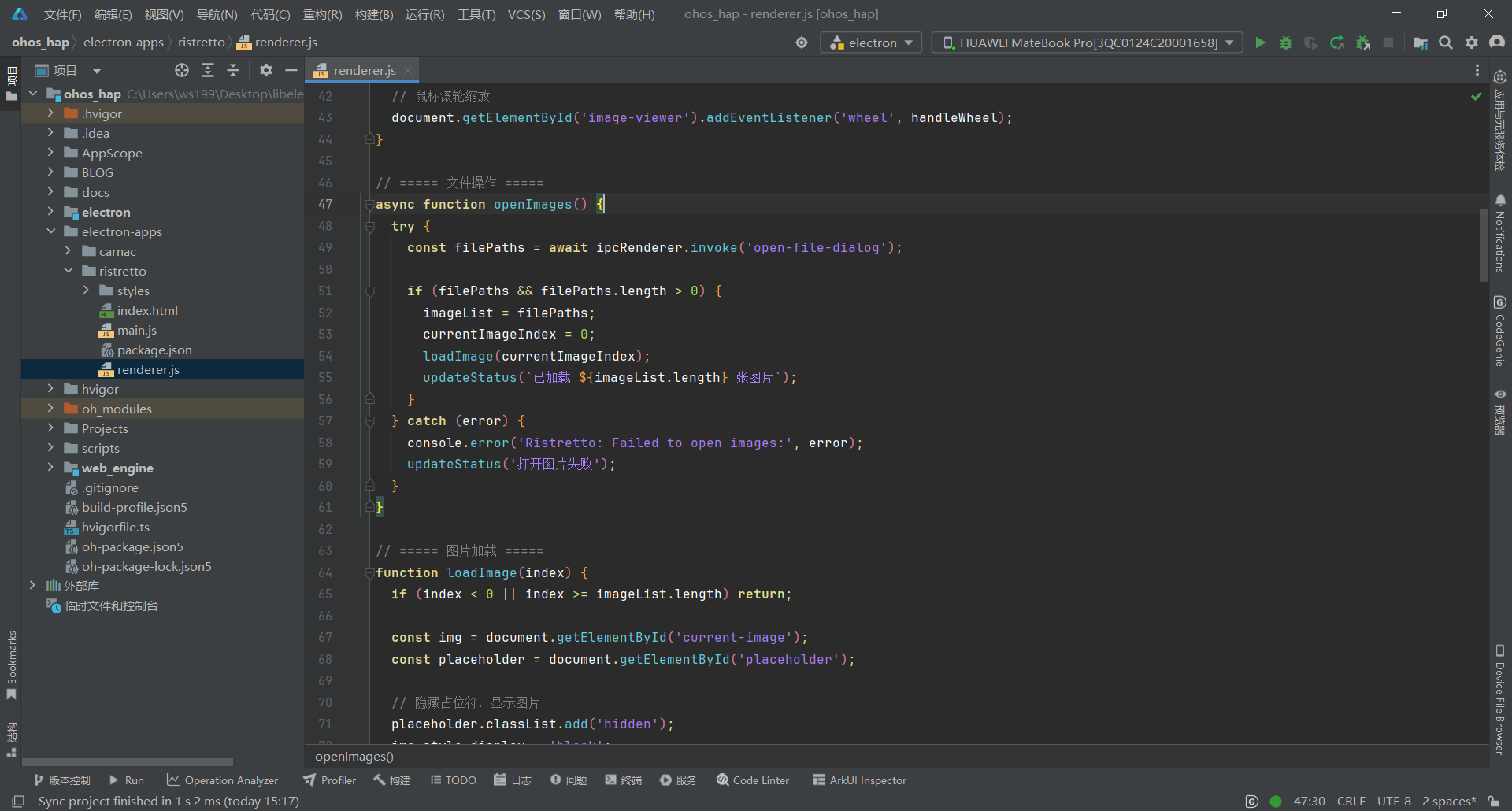
async function openImages() {
  try {
    const filePaths = await ipcRenderer.invoke('open-file-dialog');

    if (filePaths && filePaths.length > 0) {
      imageList = filePaths;
      currentImageIndex = 0;
      loadImage(currentImageIndex);
      updateStatus(`已加载 ${imageList.length} 张图片`);
    }
  } catch (error) {
    console.error('Ristretto: Failed to open images:', error);
    updateStatus('打开图片失败');
  }
}
3.3.4 图片加载和显示
// ===== 图片加载 =====
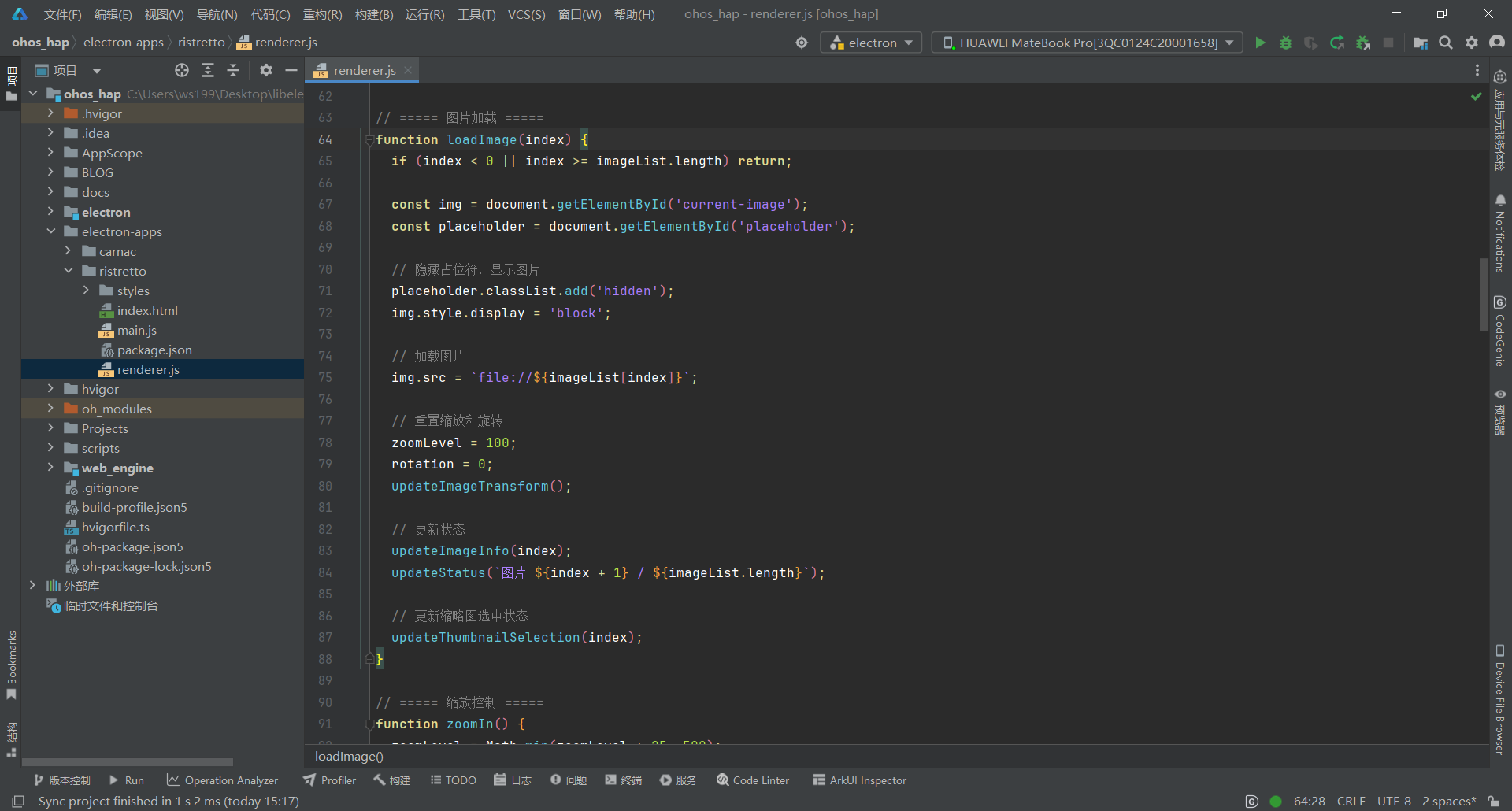
function loadImage(index) {
  if (index < 0 || index >= imageList.length) return;

  const img = document.getElementById('current-image');
  const placeholder = document.getElementById('placeholder');

  // 隐藏占位符,显示图片
  placeholder.classList.add('hidden');
  img.style.display = 'block';

  // 加载图片
  img.src = `file://${imageList[index]}`;

  // 重置缩放和旋转
  zoomLevel = 100;
  rotation = 0;
  updateImageTransform();

  // 更新状态
  updateImageInfo(index);
  updateStatus(`图片 ${index + 1} / ${imageList.length}`);

  // 更新缩略图选中状态
  updateThumbnailSelection(index);
}
3.3.5 缩放和旋转功能
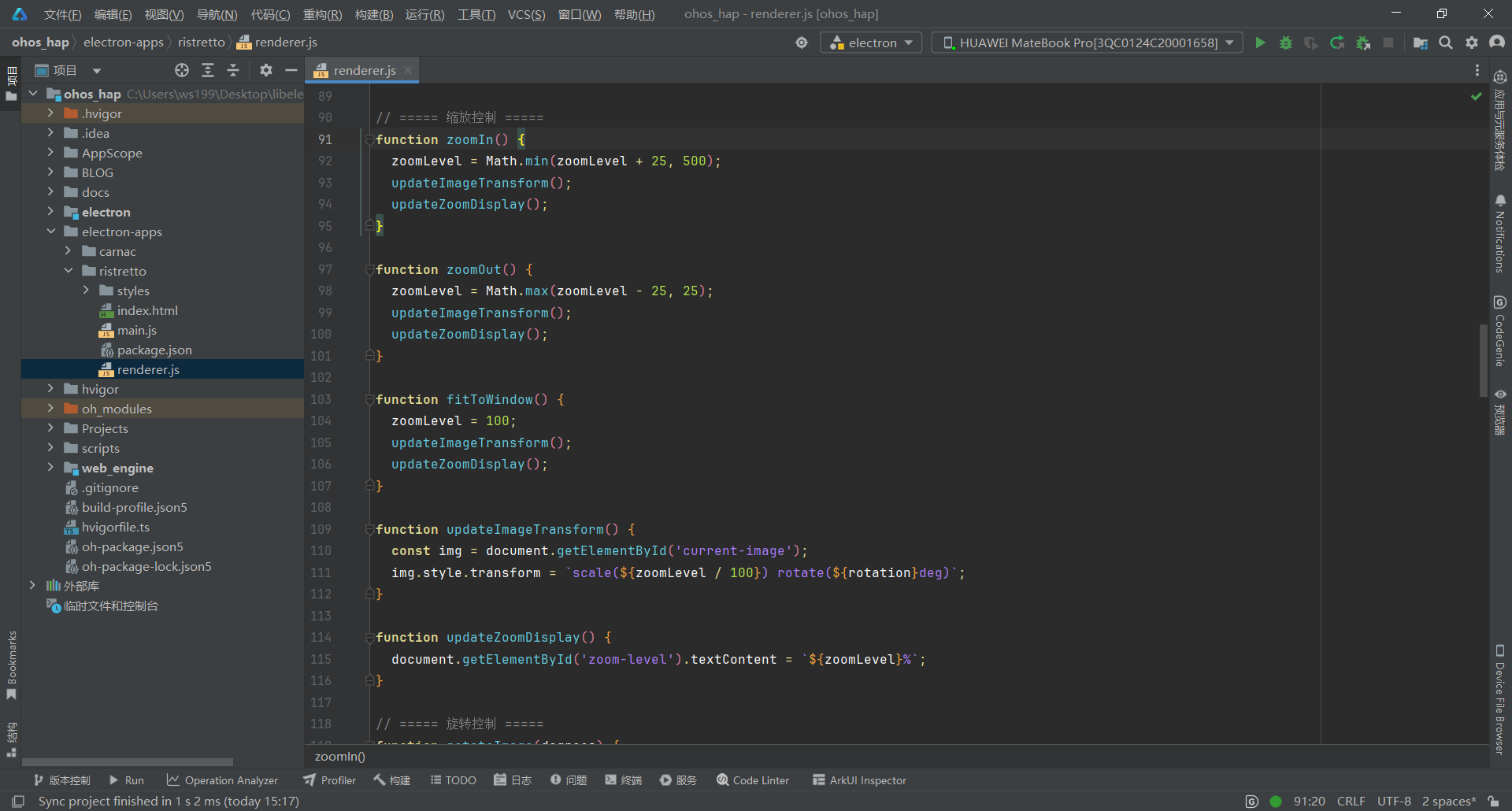
// ===== 缩放控制 =====
function zoomIn() {
  zoomLevel = Math.min(zoomLevel + 25, 500);
  updateImageTransform();
  updateZoomDisplay();
}

function zoomOut() {
  zoomLevel = Math.max(zoomLevel - 25, 25);
  updateImageTransform();
  updateZoomDisplay();
}

function fitToWindow() {
  zoomLevel = 100;
  updateImageTransform();
  updateZoomDisplay();
}

function updateImageTransform() {
  const img = document.getElementById('current-image');
  img.style.transform = `scale(${zoomLevel / 100}) rotate(${rotation}deg)`;
}

function updateZoomDisplay() {
  document.getElementById('zoom-level').textContent = `${zoomLevel}%`;
}

// ===== 旋转控制 =====
function rotateImage(degrees) {
  rotation += degrees;
  updateImageTransform();
}
3.3.6 幻灯片播放
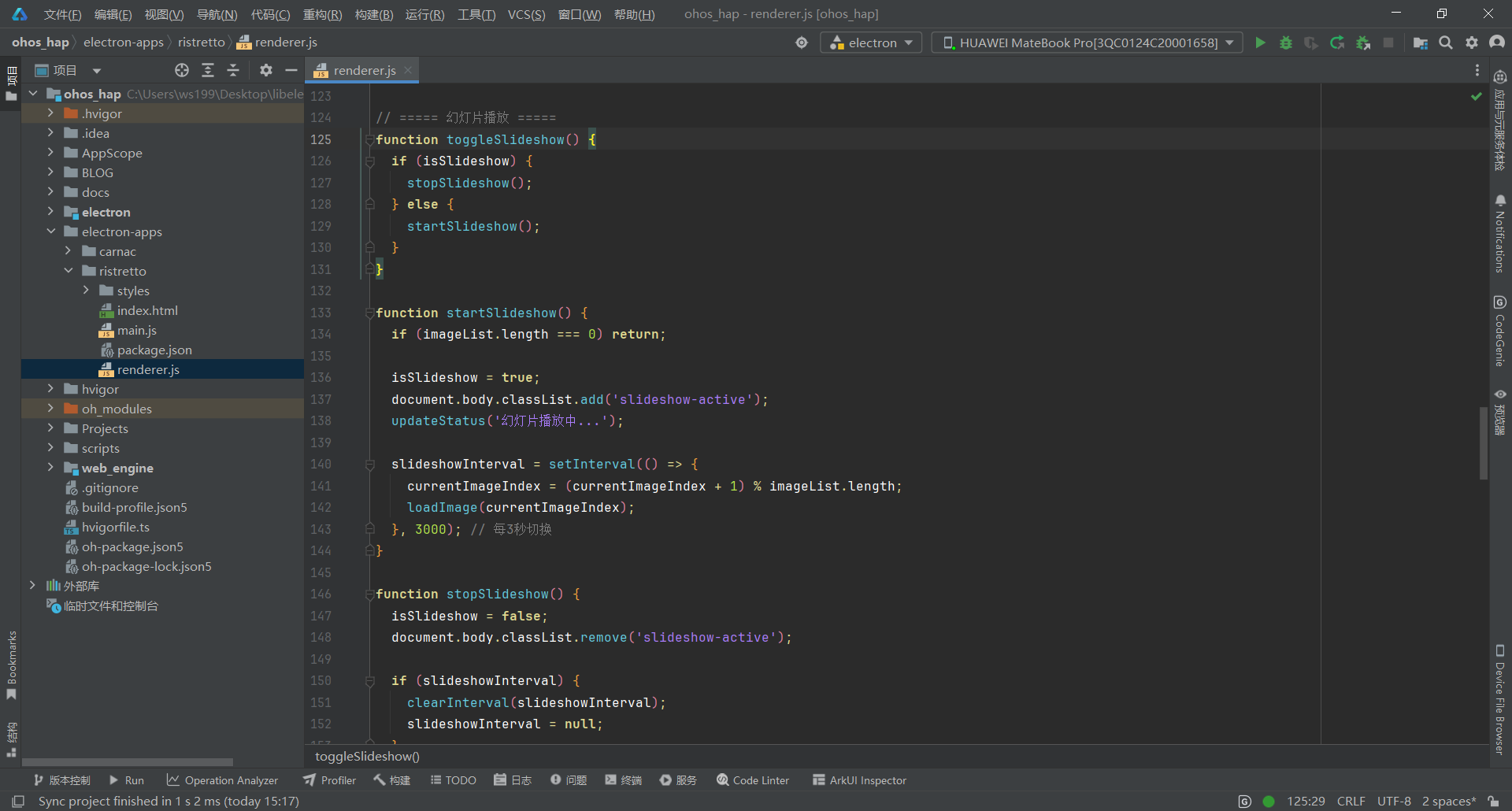
// ===== 幻灯片播放 =====
function toggleSlideshow() {
  if (isSlideshow) {
    stopSlideshow();
  } else {
    startSlideshow();
  }
}

function startSlideshow() {
  if (imageList.length === 0) return;

  isSlideshow = true;
  document.body.classList.add('slideshow-active');
  updateStatus('幻灯片播放中...');

  slideshowInterval = setInterval(() => {
    currentImageIndex = (currentImageIndex + 1) % imageList.length;
    loadImage(currentImageIndex);
  }, 3000); // 每3秒切换
}

function stopSlideshow() {
  isSlideshow = false;
  document.body.classList.remove('slideshow-active');

  if (slideshowInterval) {
    clearInterval(slideshowInterval);
    slideshowInterval = null;
  }

  updateStatus('幻灯片已停止');
}
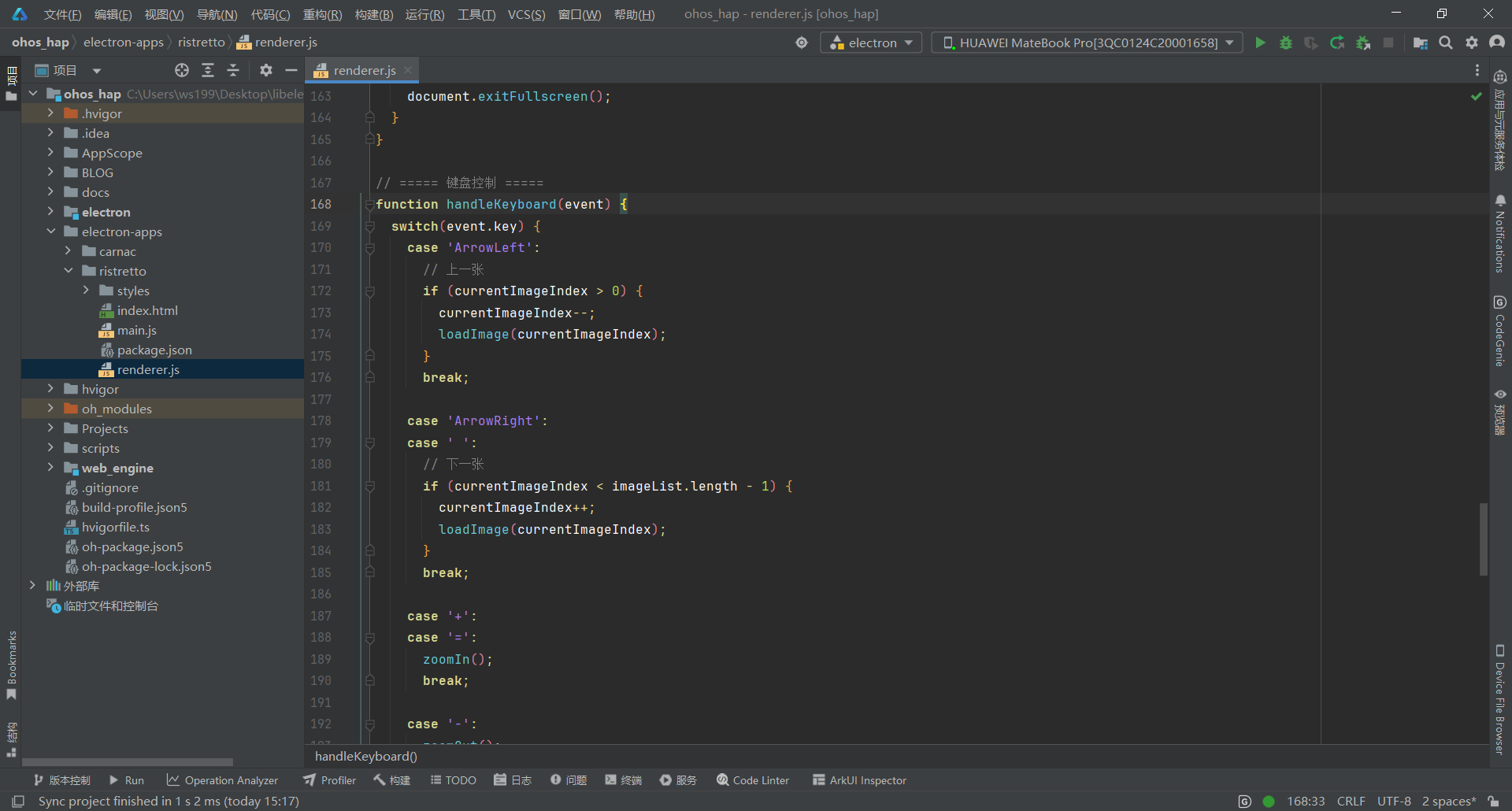
3.3.7 键盘快捷键支持
// ===== 键盘控制 =====
function handleKeyboard(event) {
  switch(event.key) {
    case 'ArrowLeft':
      // 上一张
      if (currentImageIndex > 0) {
        currentImageIndex--;
        loadImage(currentImageIndex);
      }
      break;

    case 'ArrowRight':
    case ' ':
      // 下一张
      if (currentImageIndex < imageList.length - 1) {
        currentImageIndex++;
        loadImage(currentImageIndex);
      }
      break;

    case '+':
    case '=':
      zoomIn();
      break;

    case '-':
      zoomOut();
      break;

    case '0':
      fitToWindow();
      break;

    case 'r':
      rotateImage(90);
      break;

    case 'R':
      rotateImage(-90);
      break;

    case 'F11':
      event.preventDefault();
      toggleFullscreen();
      break;

    case 'Escape':
      if (isSlideshow) {
        stopSlideshow();
      }
      break;
  }
}
3.4 第四步:设计 UI 界面
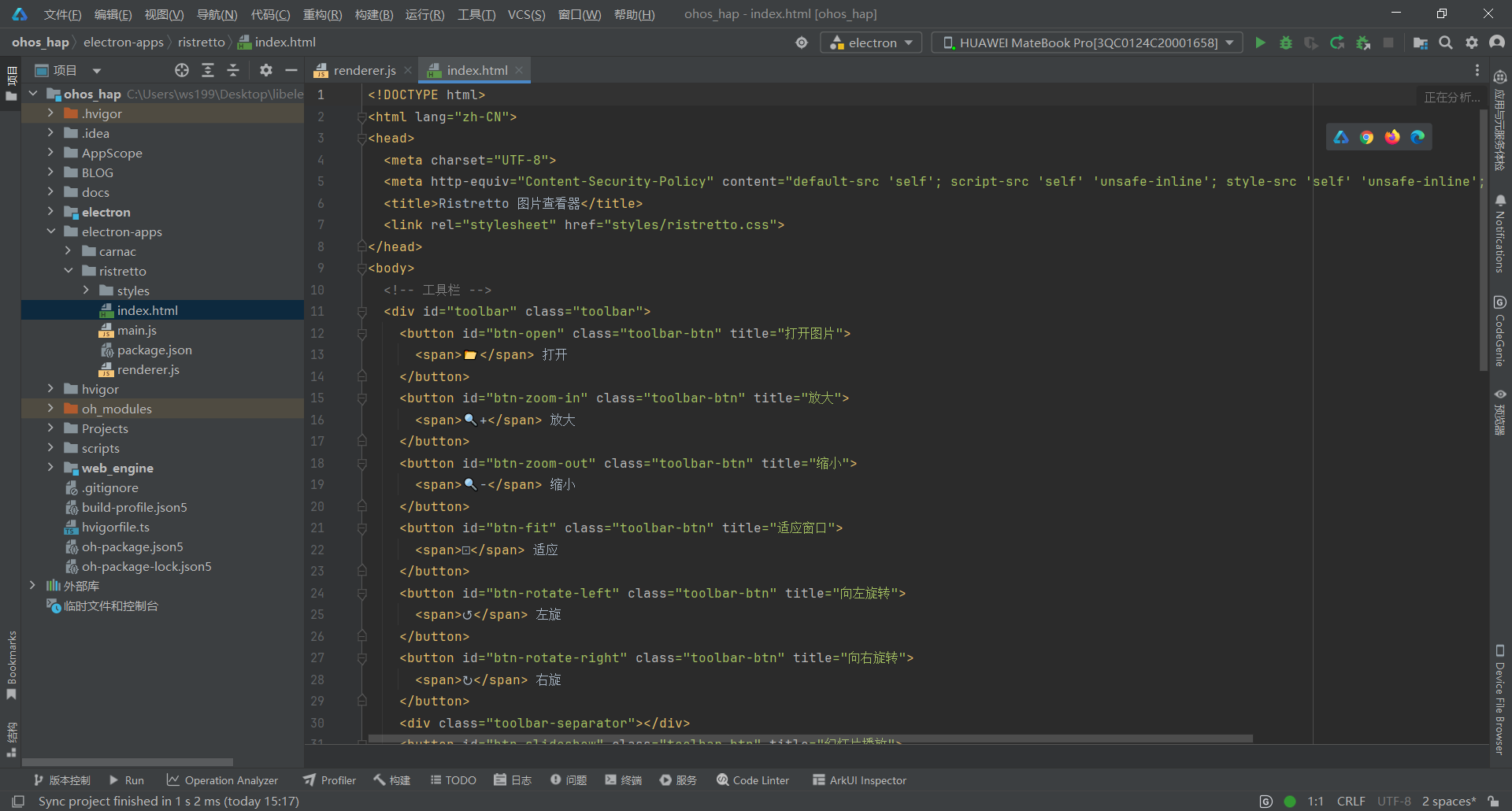
文件:electron-apps/ristretto/index.html
<!DOCTYPE html>
<html lang="zh-CN">
<head>
  <meta charset="UTF-8">
  <meta http-equiv="Content-Security-Policy" content="default-src 'self'; script-src 'self' 'unsafe-inline'; style-src 'self' 'unsafe-inline'; img-src 'self' file: data:;">
  <title>Ristretto 图片查看器</title>
  <link rel="stylesheet" href="styles/ristretto.css">
</head>
<body>
  <!-- 工具栏 -->
  <div id="toolbar" class="toolbar">
    <button id="btn-open" class="toolbar-btn" title="打开图片">
      <span>📂</span> 打开
    </button>
    <button id="btn-zoom-in" class="toolbar-btn" title="放大">
      <span>🔍+</span> 放大
    </button>
    <button id="btn-zoom-out" class="toolbar-btn" title="缩小">
      <span>🔍-</span> 缩小
    </button>
    <button id="btn-fit" class="toolbar-btn" title="适应窗口">
      <span>⊡</span> 适应
    </button>
    <button id="btn-rotate-left" class="toolbar-btn" title="向左旋转">
      <span>↺</span> 左旋
    </button>
    <button id="btn-rotate-right" class="toolbar-btn" title="向右旋转">
      <span>↻</span> 右旋
    </button>
    <div class="toolbar-separator"></div>
    <button id="btn-slideshow" class="toolbar-btn" title="幻灯片播放">
      <span>▶</span> 幻灯片
    </button>
    <button id="btn-fullscreen" class="toolbar-btn" title="全屏">
      <span>⛶</span> 全屏
    </button>
    <div class="toolbar-spacer"></div>
    <span id="image-info" class="image-info"></span>
  </div>

  <!-- 主内容区 -->
  <div id="main-container" class="main-container">
    <!-- 图片显示区 -->
    <div id="image-viewer" class="image-viewer">
      <img id="current-image" class="current-image" src="" alt="">
      <div id="placeholder" class="placeholder">
        <div class="placeholder-icon">🖼️</div>
        <div class="placeholder-text">点击"打开"按钮选择图片</div>
        <div class="placeholder-hint">支持 JPG、PNG、GIF、WebP、SVG 等格式</div>
      </div>
    </div>

    <!-- 缩略图侧边栏 -->
    <div id="thumbnail-sidebar" class="thumbnail-sidebar hidden">
      <div id="thumbnail-list" class="thumbnail-list"></div>
    </div>
  </div>

  <!-- 底部状态栏 -->
  <div id="statusbar" class="statusbar">
    <span id="status-text">就绪</span>
    <span id="zoom-level">100%</span>
  </div>

  <script src="renderer.js"></script>
</body>
</html>
3.5 第五步:编写样式文件
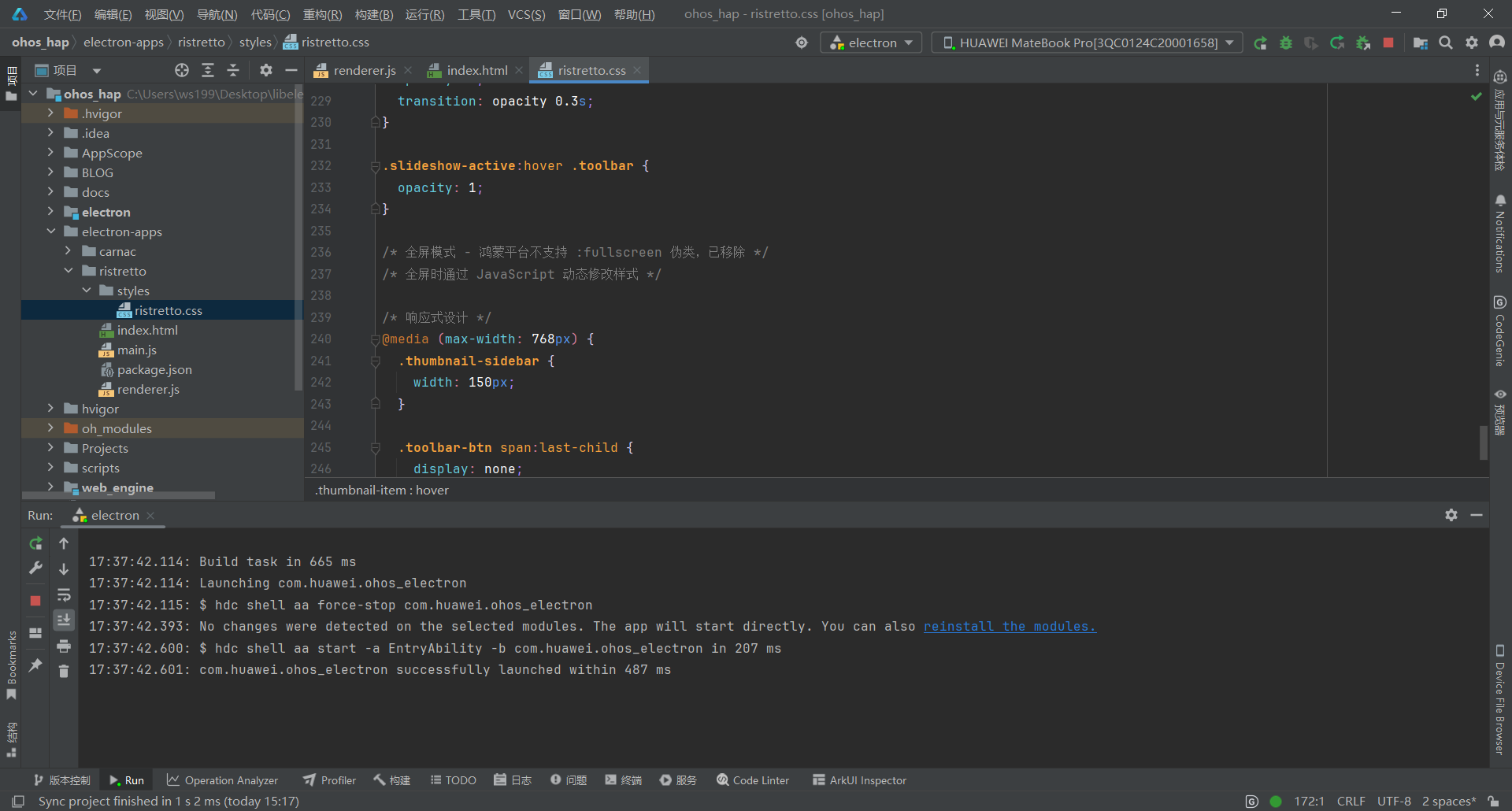
文件:electron-apps/ristretto/styles/ristretto.css
/* 工具栏 - 优化布局 */
.toolbar {
  display: flex;
  align-items: center;
  padding: 6px 10px;
  background: #2d2d30;
  border-bottom: 1px solid #3e3e42;
  gap: 6px;
  -webkit-app-region: drag;
}

.toolbar-btn {
  -webkit-app-region: no-drag;
  padding: 5px 10px;
  background: #0e639c;
  color: #ffffff;
  border: none;
  border-radius: 3px;
  cursor: pointer;
  font-size: 12px;
  transition: background 0.2s;
  display: flex;
  align-items: center;
  gap: 4px;
  white-space: nowrap;
  min-width: auto;
}

.toolbar-btn:hover {
  background: #1177bb;
}

.toolbar-btn:active {
  background: #094771;
}

.toolbar-btn span:first-child {
  font-size: 14px;
  line-height: 1;
}

.toolbar-separator {
  width: 1px;
  height: 20px;
  background: #3e3e42;
  margin: 0 2px;
}

.toolbar-spacer {
  flex: 1;
}

.image-info {
  font-size: 11px;
  color: #cccccc;
  padding: 0 6px;
  max-width: 300px;
  overflow: hidden;
  text-overflow: ellipsis;
  white-space: nowrap;
}

/* 主内容区 */
.main-container {
  flex: 1;
  display: flex;
  overflow: hidden;
  position: relative;
}

/* 图片显示区 */
.image-viewer {
  flex: 1;
  display: flex;
  align-items: center;
  justify-content: center;
  overflow: auto;
  background: #1e1e1e;
  position: relative;
}

.current-image {
  max-width: 100%;
  max-height: 100%;
  object-fit: contain;
  transition: transform 0.2s ease;
  cursor: grab;
}

.current-image:active {
  cursor: grabbing;
}

/* 占位符 */
.placeholder {
  display: flex;
  flex-direction: column;
  align-items: center;
  justify-content: center;
  color: #858585;
  text-align: center;
}

.placeholder-icon {
  font-size: 96px;
  margin-bottom: 20px;
  opacity: 0.5;
}

.placeholder-text {
  font-size: 18px;
  margin-bottom: 8px;
  color: #cccccc;
}

.placeholder-hint {
  font-size: 13px;
  color: #858585;
}

.hidden {
  display: none !important;
}

/* 缩略图侧边栏 */
.thumbnail-sidebar {
  width: 200px;
  background: #252526;
  border-left: 1px solid #3e3e42;
  overflow-y: auto;
  padding: 8px;
}

.thumbnail-list {
  display: flex;
  flex-direction: column;
  gap: 8px;
}

.thumbnail-item {
  width: 100%;
  aspect-ratio: 1;
  background: #1e1e1e;
  border-radius: 4px;
  overflow: hidden;
  cursor: pointer;
  border: 2px solid transparent;
  transition: border-color 0.2s;
  position: relative;
}

.thumbnail-item:hover {
  border-color: #0e639c;
}

.thumbnail-item.active {
  border-color: #007acc;
}

.thumbnail-item img {
  width: 100%;
  height: 100%;
  object-fit: cover;
}

.thumbnail-item .thumbnail-name {
  position: absolute;
  bottom: 0;
  left: 0;
  right: 0;
  padding: 4px;
  background: rgba(0, 0, 0, 0.7);
  font-size: 10px;
  color: #ffffff;
  text-align: center;
  white-space: nowrap;
  overflow: hidden;
  text-overflow: ellipsis;
}

/* 状态栏 */
.statusbar {
  display: flex;
  justify-content: space-between;
  align-items: center;
  padding: 6px 12px;
  background: #007acc;
  color: #ffffff;
  font-size: 12px;
  border-top: 1px solid #005a9e;
}

#zoom-level {
  font-weight: 600;
  padding: 2px 8px;
  background: rgba(255, 255, 255, 0.1);
  border-radius: 3px;
}

/* 幻灯片模式 */
.slideshow-active .toolbar {
  opacity: 0;
  transition: opacity 0.3s;
}

.slideshow-active:hover .toolbar {
  opacity: 1;
}

/* 全屏模式 */
:fullscreen .image-viewer {
  background: #000000;
}

/* 滚动条样式 - 鸿蒙平台兼容 */
.image-viewer,
.thumbnail-sidebar {
  scrollbar-width: thin;
  scrollbar-color: #3e3e42 #1e1e1e;
}

/* 响应式设计 */
@media (max-width: 768px) {
  .thumbnail-sidebar {
    width: 150px;
  }

  .toolbar-btn span:last-child {
    display: none;
  }

  .image-info {
    display: none;
  }
}
关键要点:
- 避免使用 -webkit-scrollbar 伪元素(鸿蒙不支持)
- 使用 Flexbox 实现响应式布局
- 深色主题,适合图片浏览
- 工具栏紧凑设计,节省空间
四、部署到鸿蒙平台
4.1 文件同步
使用 PowerShell 脚本将 Electron 应用文件同步到鸿蒙项目:
# 同步 main.js
Copy-Item "electron-apps\ristretto\main.js" `
  -Destination "web_engine\src\main\resources\resfile\resources\app\main.js" `
  -Force

# 同步 renderer.js
Copy-Item "electron-apps\ristretto\renderer.js" `
  -Destination "web_engine\src\main\resources\resfile\resources\app\renderer.js" `
  -Force

# 同步 index.html
Copy-Item "electron-apps\ristretto\index.html" `
  -Destination "web_engine\src\main\resources\resfile\resources\app\index.html" `
  -Force

# 同步 ristretto.css
Copy-Item "electron-apps\ristretto\styles\ristretto.css" `
  -Destination "web_engine\src\main\resources\resfile\resources\app\styles\ristretto.css" `
  -Force
4.2 构建 HAP 包
在 DevEco Studio 中:
- 打开项目根目录
- 点击 Build > Build Hap(s)/APP(s)
- 选择 Build Hap(s)
- 等待构建完成
4.3 真机测试
- 连接鸿蒙设备(或启动模拟器)
- 点击 Run > Run ‘entry’
- 安装完成后,应用会自动启动
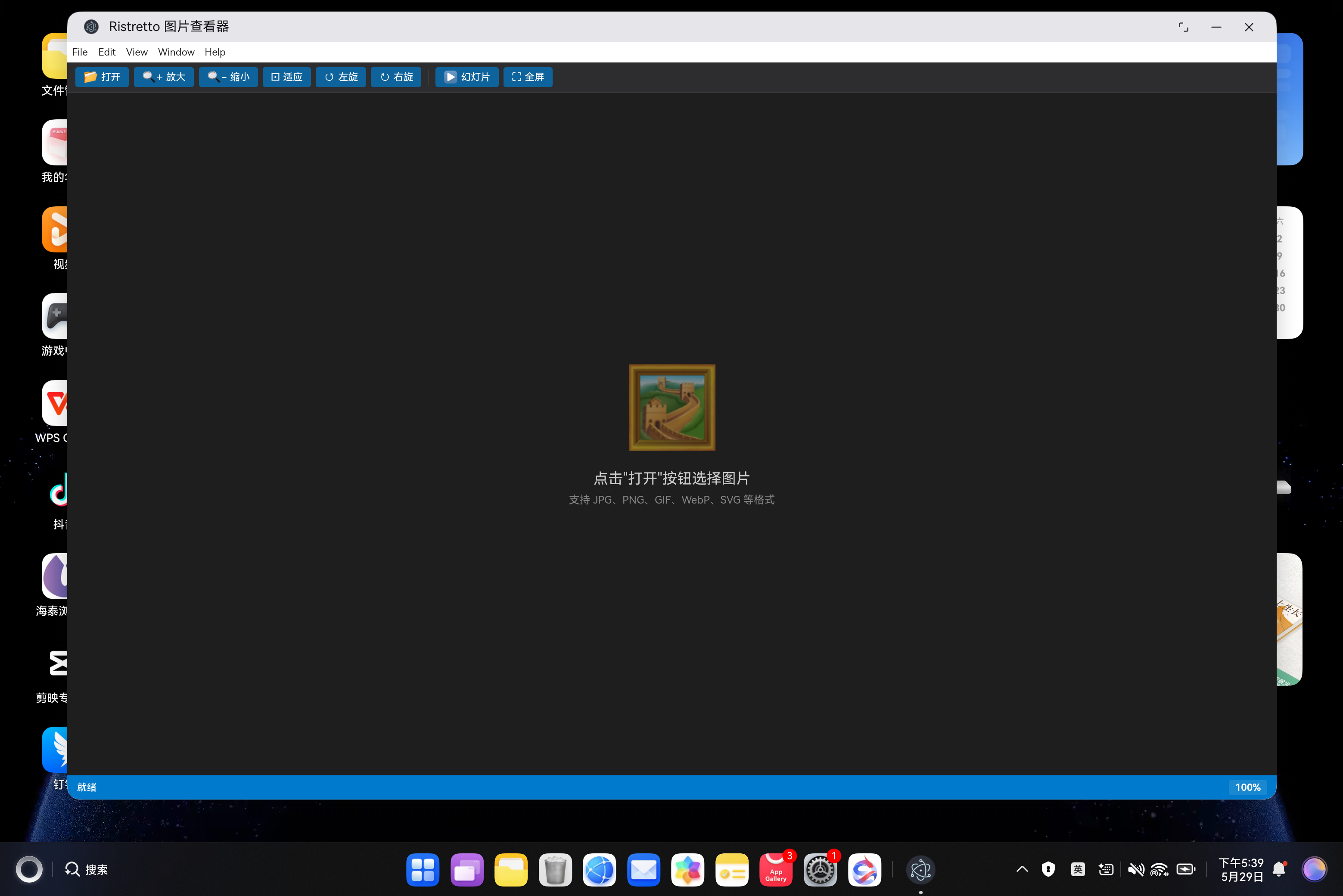
- 点击"打开"按钮选择图片进行测试
五、常见问题 FAQ
Q1:图片无法加载怎么办?
问题现象:点击"打开"后图片不显示
根本原因:文件路径格式不正确或缺少 file:// 协议前缀
解决方案:
// 正确方式:添加 file:// 协议
img.src = `file://${imageList[index]}`;
注意事项:
- Windows 路径需要转换为 URL 格式
- 确保文件存在且有读取权限
- 检查 CSP 策略是否允许 file: 协议
Q2:工具栏按钮布局混乱?
问题现象:按钮重叠、大小不一、换行显示
解决方案:
.toolbar-btn {
  padding: 5px 10px;          /* 紧凑内边距 */
  font-size: 12px;            /* 统一字体大小 */
  white-space: nowrap;        /* 防止换行 */
  min-width: auto;            /* 宽度自适应 */
  display: flex;              /* Flex 布局 */
  align-items: center;        /* 垂直居中 */
}

.toolbar-btn span:first-child {
  font-size: 14px;            /* 图标稍大 */
  line-height: 1;             /* 行高一致 */
}
关键点:
- 使用 white-space: nowrap 防止文字换行
- 图标和文字分别设置大小
- 工具栏使用 flex 布局自动分配空间
Q3:全屏按钮显示异常?
问题现象:全屏按钮比其他按钮大很多
根本原因:图标字符 ⛶ 字体渲染尺寸不一致
解决方案:
.toolbar-btn {
  padding: 5px 10px;          /* 统一内边距 */
  font-size: 12px;            /* 统一文字大小 */
}

.toolbar-btn span:first-child {
  font-size: 14px;            /* 统一图标大小 */
  line-height: 1;             /* 固定行高 */
}
效果:所有按钮的图标统一为 14px,文字统一为 12px,高度一致。
Q4:幻灯片播放时无法暂停?
问题现象:点击"幻灯片"按钮后无法停止自动播放
解决方案:
function toggleSlideshow() {
  if (isSlideshow) {
    stopSlideshow();  // 停止播放
  } else {
    startSlideshow(); // 开始播放
  }
}

function stopSlideshow() {
  isSlideshow = false;
  document.body.classList.remove('slideshow-active');

  if (slideshowInterval) {
    clearInterval(slideshowInterval);  // 清除定时器
    slideshowInterval = null;
  }

  updateStatus('幻灯片已停止');
}
关键点:
- 使用 clearInterval() 清除定时器
- 将 slideshowInterval 重置为 null
- 移除 slideshow-active 类
Q5:键盘快捷键不生效?
问题现象:按方向键、+/- 键没有反应
根本原因:窗口未获取焦点或事件监听未正确注册
解决方案:
// 确保窗口获取焦点
mainWindow.webContents.on('did-finish-load', () => {
  mainWindow.focus();
});

// 注册键盘事件监听
document.addEventListener('keydown', handleKeyboard);

// 处理键盘事件
function handleKeyboard(event) {
  switch(event.key) {
    case 'ArrowLeft':
      // 上一张
      break;
    case 'ArrowRight':
    case ' ':
      // 下一张
      break;
    // ... 其他快捷键
  }
}
注意事项:
- mainWindow.focusable 必须为 true
- 事件监听需要在 DOMContentLoaded 后注册
- 使用 event.preventDefault() 阻止默认行为
Q6:缩放和旋转同时应用时变形?
问题现象:先缩放再旋转,图片显示异常
解决方案:
function updateImageTransform() {
  const img = document.getElementById('current-image');
  // 同时应用缩放和旋转
  img.style.transform = `scale(${zoomLevel / 100}) rotate(${rotation}deg)`;
}

function zoomIn() {
  zoomLevel = Math.min(zoomLevel + 25, 500);
  updateImageTransform();
  updateZoomDisplay();
}

function rotateImage(degrees) {
  rotation += degrees;
  updateImageTransform();
}
关键点:
- 使用 transform 同时设置缩放和旋转
- 不要在 CSS 中单独设置 scale 和 rotate
- 每次修改后调用 updateImageTransform() 统一更新
Q7:图片切换时闪烁?
问题现象:切换图片时出现短暂白屏或闪烁
解决方案:
function loadImage(index) {
  const img = document.getElementById('current-image');

  // 预加载图片
  const tempImg = new Image();
  tempImg.onload = () => {
    img.src = tempImg.src;
    // 显示图片
    img.style.display = 'block';
  };
  tempImg.src = `file://${imageList[index]}`;
}
或者使用 CSS 优化:
.current-image {
  transition: opacity 0.2s ease;  /* 平滑过渡 */
}

.current-image.loading {
  opacity: 0;  /* 加载中隐藏 */
}
Q8:鸿蒙平台构建失败?
问题现象:hvigor 构建时报错,无法找到文件
根本原因:文件未同步到鸿蒙项目或路径错误
解决方案:
# 1. 确认源文件存在
Test-Path "electron-apps\ristretto\main.js"

# 2. 同步文件
Copy-Item "electron-apps\ristretto\*.js" `
  -Destination "web_engine\src\main\resources\resfile\resources\app\" `
  -Force

Copy-Item "electron-apps\ristretto\*.html" `
  -Destination "web_engine\src\main\resources\resfile\resources\app\" `
  -Force

# 3. 验证同步结果
Get-ChildItem "web_engine\src\main\resources\resfile\resources\app\"
注意事项:
- 每次修改后都需要同步文件
- 检查 build-profile.json5 配置
- 确保 module.json5 中声明了网络权限(如需要)
转载自CSDN-专业IT技术社区
原文链接:https://blog.csdn.net/COLLINSXU/article/details/161798673